Tooltip Builder
Add helpful tooltips on your site, without cluttering your UI
Add on-demand context to buttons, icons, links, and form fields in Webflow using the Tooltip Builder.
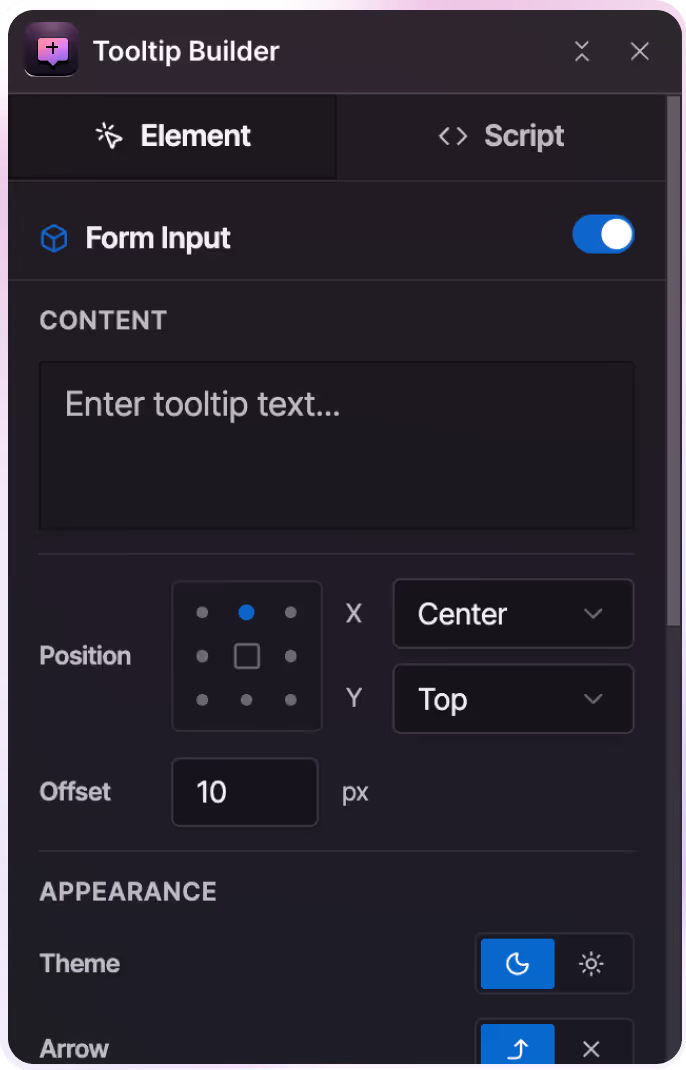
What Tooltip Builder Is For
Tooltip Builder lets you add helpful context only when it’s needed. Explain buttons, icons, links, or form fields without crowding your interface or breaking layouts.


Where Tooltip Builder Helps Most
Tooltips work best in places where users hesitate, second-guess, or need quick clarification.

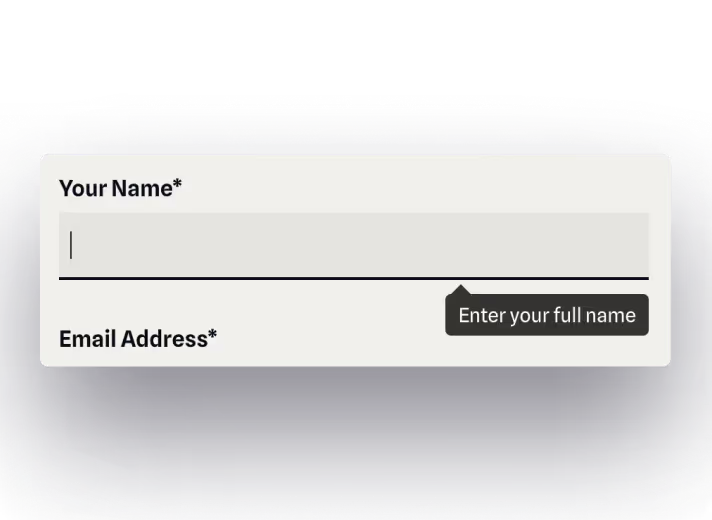
Forms and inputs
Explain formatting rules, edge cases, or why a field is required, without adding helper text everywhere.
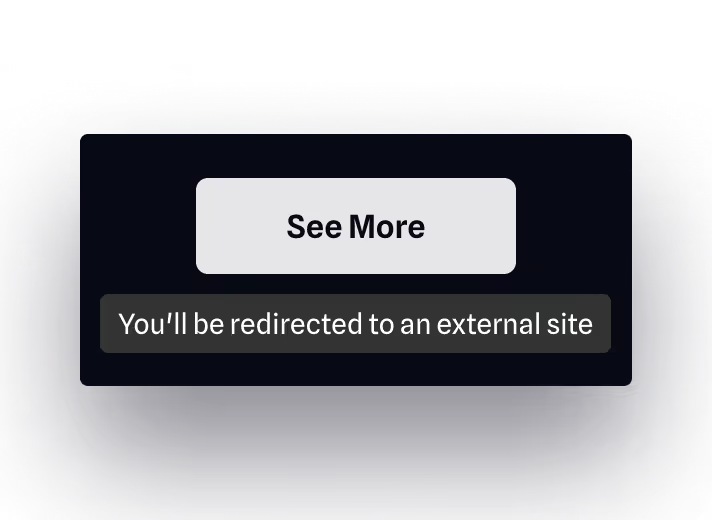
Buttons and icon-only actions
Clarify what an action does before someone clicks, especially when the label or icon isn’t obvious.
Supporting accessible interactions
Provide additional context for users navigating with keyboards or assistive technologies, without changing your visual layout.
How it works
Set up tooltips in a few simple steps, without writing custom code or changing your layout.
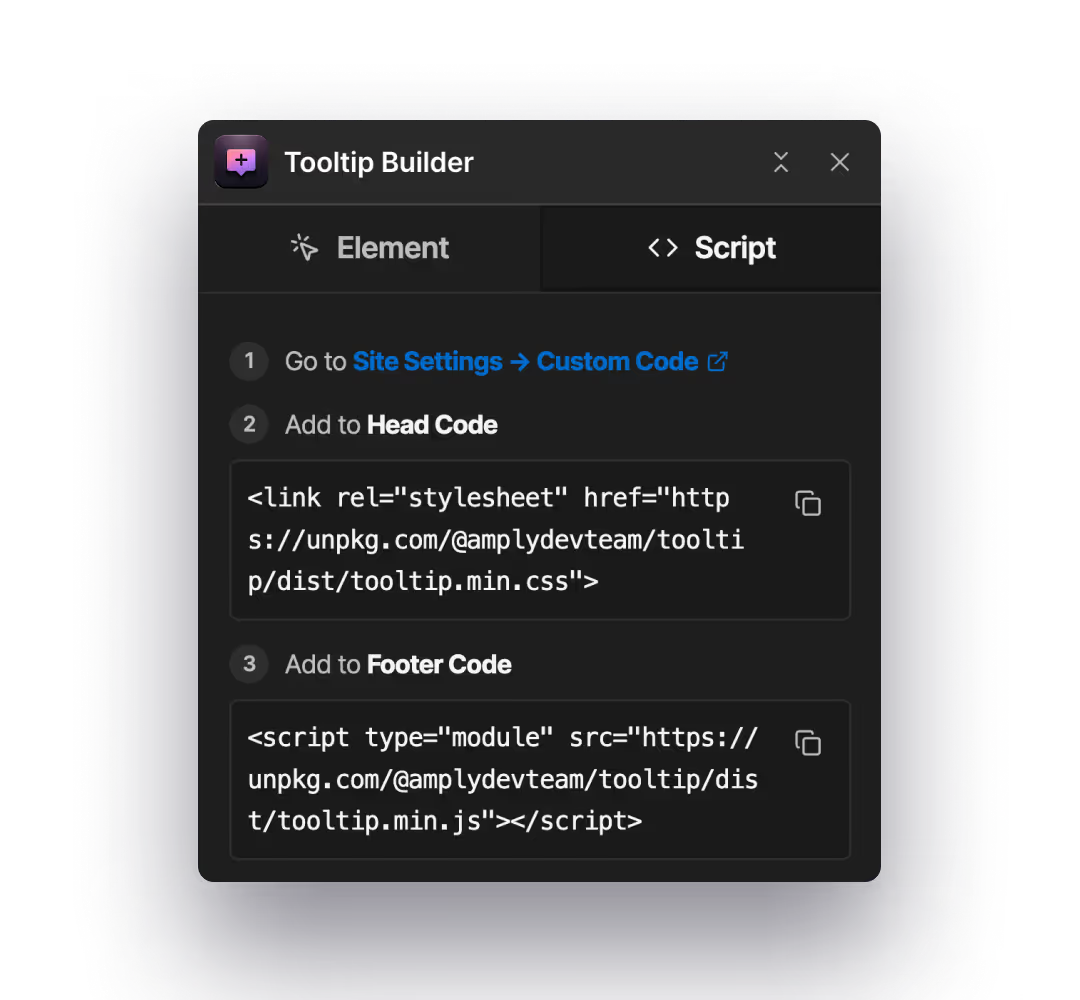
Step 1: Install the scripts once
Add the Tooltip Builder scripts to your site once. No per-page setup or repeated embeds.
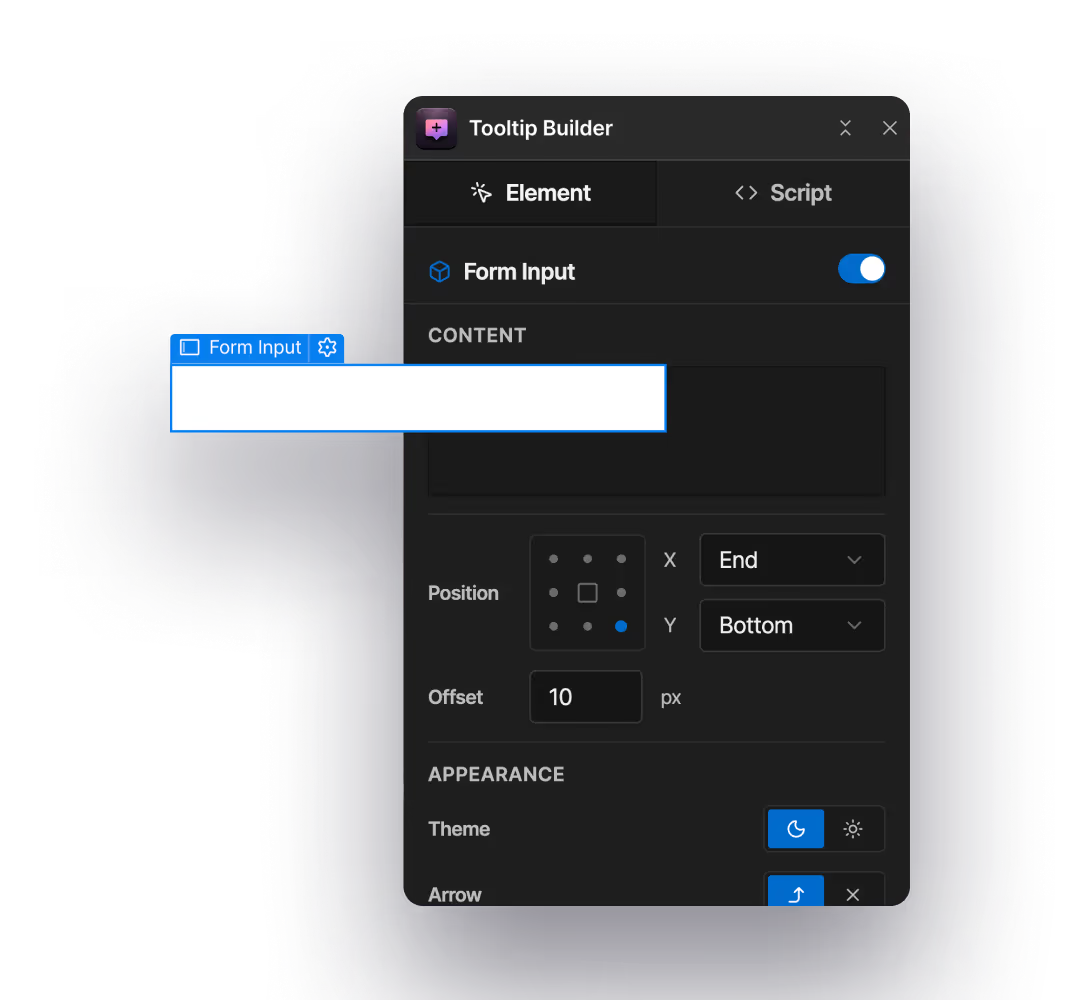
Step 2: Select the element
Choose any button, icon, link, or form field where you want to add context.
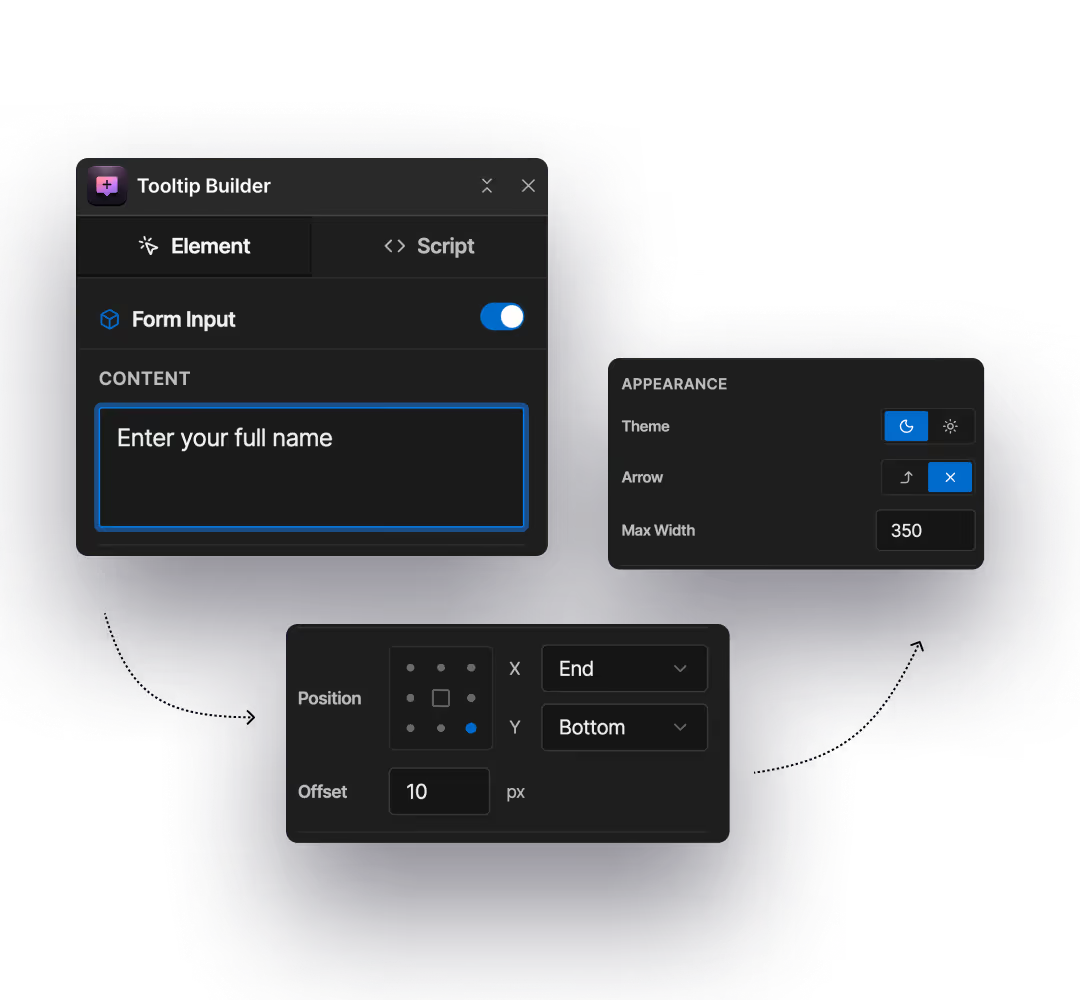
Step 3: Add & customize your tooltip
Set the tooltip text and choose where it appears. You can also switch between dark and light themes, and set a max width to make sure it never goes beyond your element.
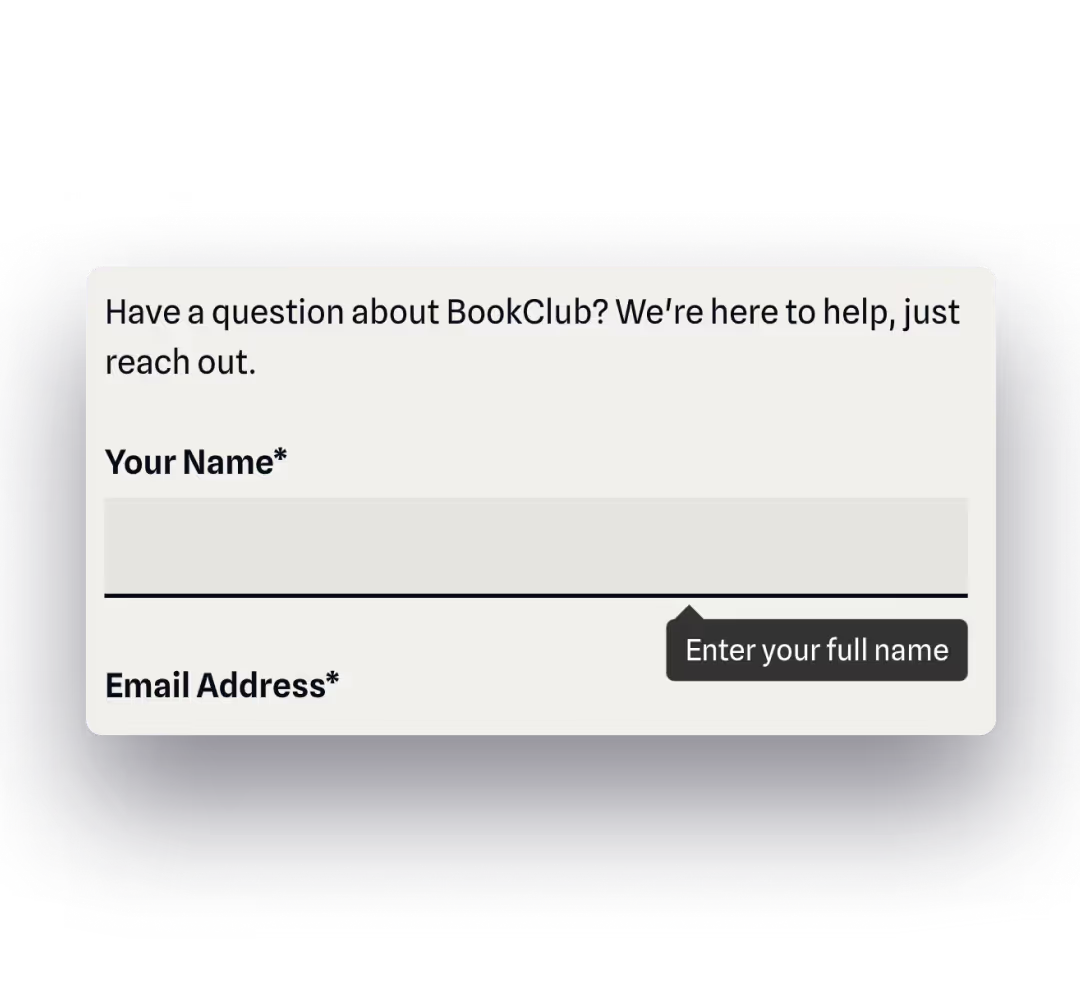
Step 4: Test in Preview mode & publish when ready
See tooltips working instantly in Webflow Preview . Once published, tooltips work automatically across your site.
Want to add tooltips without cluttering your UI?
Add contextual tooltips to your Webflow site in minutes, without changing your layouts.